

If you're still creating separate booking links for every meeting format — one for Zoom calls, another for in-person meetings, a third for phone calls — you're creating unnecessary friction for your clients and extra work for yourself.
Multi-location event types solve this by letting you offer multiple meeting locations under a single event type. Your invitees choose how they want to meet at the time of booking, and your calendar updates automatically with the right details.
Whether you're a consultant, coach, freelancer, or small business owner, setting up multi-location event types with Novacal takes minutes and pays off every time someone books a meeting.
What Is a Multi-Location Event Type?
A multi-location event type is a single bookable event that offers your invitees a choice of meeting locations when they schedule. Instead of the host deciding where the meeting happens, the invitee selects from the options you've pre-configured.
Common location options include:
- Video conferencing — Zoom or Google Meet
- Phone call — you call them, or they call you
- Custom location — a free-text field for anything: a link, an address, a room number, or any other detail. Can be added multiple times for different needs
This flexibility increases booking conversions, reduces back-and-forth emails, and makes your scheduling link useful for a wider range of clients.
How to Set Up Multi-Location Event Types in Novacal
Step 1: Log In to Your Account
Sign in to your Novacal account — or create one if you don't have one yet.
Step 2: Go to an Existing Event Type or Create a New One
From the main dashboard, click Event Types in the left-hand navigation menu. From there, open an existing event type to edit it, or click Create New to start fresh.
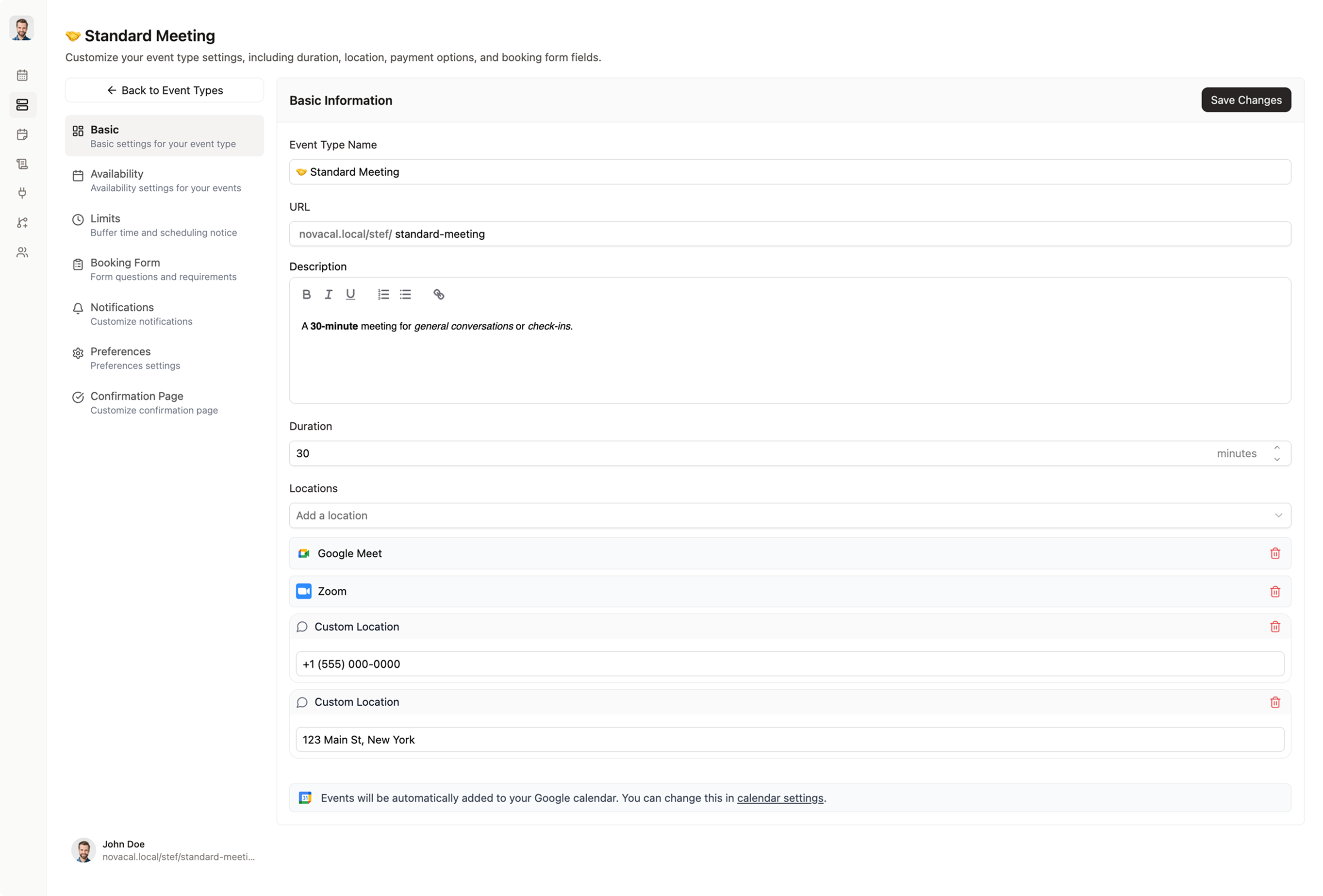
Step 3: Add Your Location Options
Scroll down to the Locations section. By default, you may see a single location field. Click Add a Location to expand into multi-location mode. Novacal supports several location types — video conferencing, phone, and more. Add whichever options are relevant to how you meet with clients. Most users find 2–3 options is enough without overwhelming the invitee.
Step 4: Save and Share Your Booking Link
Once you're happy with your setup, click Save Changes and your event type goes live with multi-location support. Copy your booking link and share it wherever you'd normally send a scheduling link — email signatures, proposals, LinkedIn, your website, or directly in conversations.
Tips for Getting the Most from Multi-Location Event Types
Keep the Number of Options Manageable
Offering 2–4 location options is the sweet spot. Too many choices can cause decision fatigue and lead to drop-offs. Think about how your clients actually prefer to meet and only include those formats.
Test Your Booking Flow Before Sharing
Always go through your own booking page as if you were a client. Select each location option and check that the confirmation email, calendar invite, and location details all look correct on the other end.
Connect Your Integrations for Auto-Generated Links
For Zoom and Google Meet to generate unique, per-booking links automatically, make sure those integrations are connected in your Novacal account settings (Integrations → connect your video conferencing platform). Without this, you'll need to add meeting links manually.
Pair Multi-Location Events with Routing Forms
If you're managing a team or multiple service types, consider combining multi-location event types with routing forms — a Novacal feature that asks qualifying questions upfront and routes the invitee to the right event type (and location) automatically.
Why This Feature Saves You Time (And Wins More Clients)
Before multi-location event types, a typical scheduling flow looked like this:
- Client asks how you'd like to meet
- You reply with options
- They pick one
- You send the right booking link
- They schedule
That's unnecessary friction — especially when the first three steps happen over email or Slack with a 24-hour lag between each message.
With a multi-location event type, steps 1–4 happen automatically on the booking page. Your invitee books the meeting in the format they prefer, and you both get a properly populated calendar invite with the right details. No follow-up needed.
Get Started with Multi-Location Event Types
Multi-location event types are straightforward to configure and work immediately once published. If you've already connected your video conferencing integrations, the setup takes just a few minutes.
Sign in to Novacal and head to Event Types to get started. If you run into any questions along the way, our Help Center has additional guidance or you can reach out to our support team directly.