

Professional scheduling isn't just about finding available time slots. It's about orchestrating a complete communication experience that guides attendees from booking to showing up prepared and engaged. Your notifications are the bridge between "I'll take that meeting" and actually having a productive conversation.
Most businesses accept whatever default notification templates their scheduling tool provides. But the companies that stand out? They craft every message deliberately—from subject lines to timing to the specific instructions they include. Here's how to do the same.
Types of Notifications You Can Customize
Booking Confirmations are sent immediately when someone schedules time with you. This is your chance to confirm the details, express appreciation, and set clear expectations about what happens next. You might include preparation materials, links to relevant resources, or simply a warm welcome that reinforces their decision to meet with you.
Reminders help ensure people actually show up to the meetings they've booked. You control exactly when these go out—whether that's 15 minutes before, an hour before, a day before, or any custom timeframe that makes sense for your meetings. The content can include last-minute preparation tips, access instructions, or simply a friendly nudge that keeps your meeting top of mind.
Cancellation notifications let people know when a meeting has been cancelled, whether by you or by them. While nobody likes cancellations, a well-crafted message can maintain goodwill and make rescheduling seamless.
Reschedule notifications confirm when a meeting time has changed. Clear communication here prevents confusion and ensures everyone stays aligned on the new timing.
How to Customize Your Notifications
Setting up custom notifications is straightforward and gives you granular control over every message your scheduling system sends.
1. Create a New Account or Log In
If you're new to Novacal, head to the website and create your account. The signup process is quick and gets you up and running in minutes. If you already have an account, simply log in to access your dashboard.
2. Access Your Event Type Settings
Navigate to your Novacal dashboard and select the event type you want to configure. Each event type can have its own unique notification settings, allowing you to tailor messages based on the specific meeting purpose.
3. Open the Notifications Section
Within your event type settings, click on the "Notifications" tab or section. This is your control center for all communications related to this particular event type.
4. Configure Each Notification Type
You'll see options for confirmations, reminders, cancellations, and reschedules. For each type, you can enable or disable it entirely based on your needs. Not every event type requires every notification—you have complete flexibility.
5. Set Reminder Timing
For reminder notifications specifically, you can specify exactly when they should be sent. Enter any value in minutes before the meeting. Want to remind people 30 minutes before? Set it to 30. Need a 24-hour advance notice? Set it to 1440 minutes. The system adapts to whatever timing makes sense for your workflow.
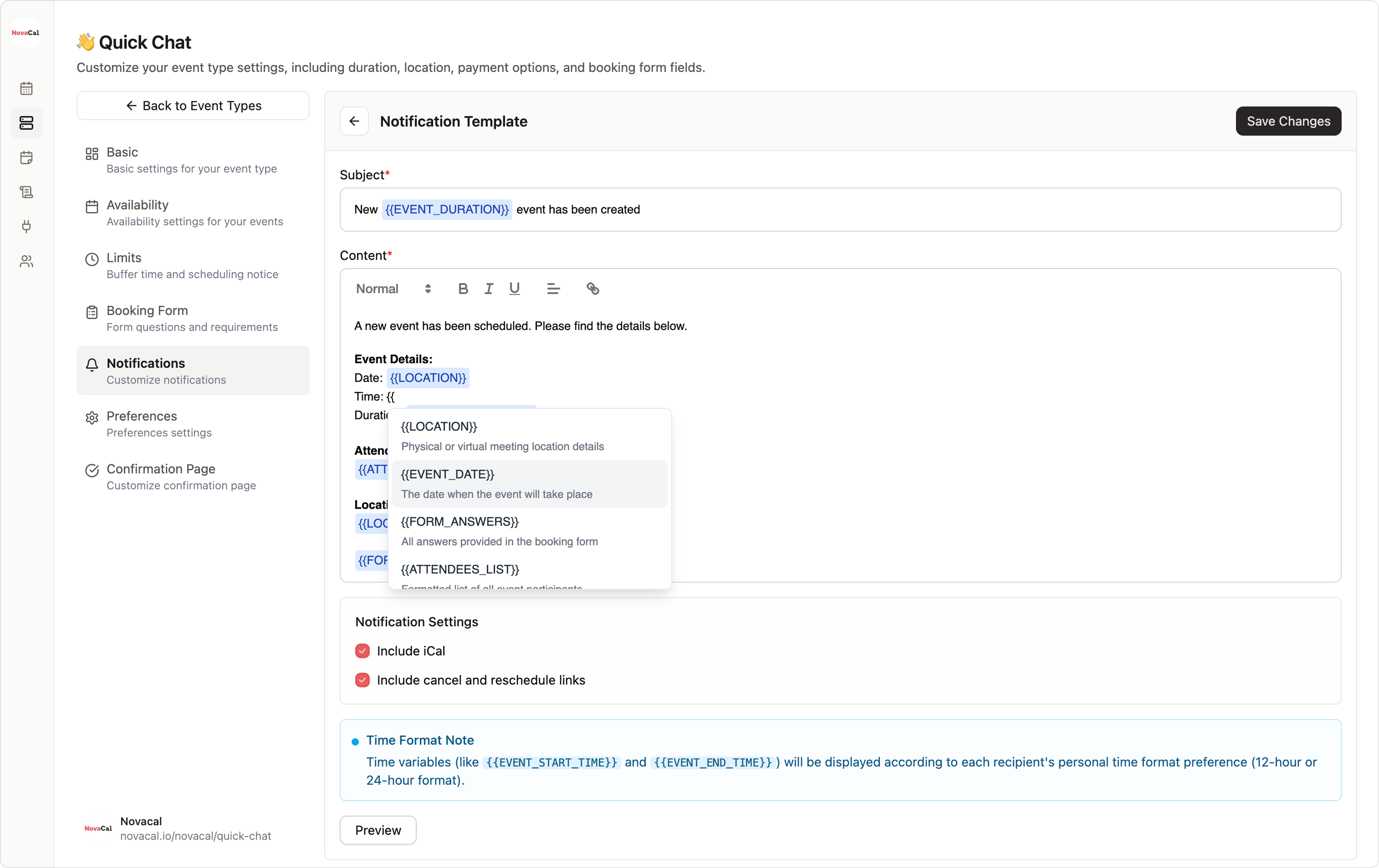
6. Customize Your Message Content
This is where the real power comes in. For each enabled notification, you can craft both the subject line and the message body. Write in your own voice, include your brand personality, and structure the information exactly how you want it presented.
7. Use Dynamic Values
Rather than static text, your notifications can automatically include personalized details that change for each booking. Dynamic values pull information directly from the booking and insert it into your message. This means you can reference the attendee's name, the specific meeting time, the event type, meeting links, and other relevant details without manually updating anything.
8. Preview Your Notifications
Before saving, you can preview exactly how your notification will appear to recipients. The preview function shows your message with dynamic values populated with sample data, giving you a realistic view of what lands in your attendees' inboxes. This lets you catch formatting issues, verify that dynamic values are placed correctly, and ensure the overall presentation matches your expectations.
9. Save and Test
Once you've crafted your notifications and reviewed the preview, save your changes. It's also wise to book a test meeting with yourself to see how your notifications appear in an actual inbox with real booking data. This final verification ensures everything works perfectly in practice.
Crafting Effective Notification Content
The best notification messages balance essential information with appropriate personality. Include the critical details—time, date, meeting link, duration—but don't stop there. Add context about what to expect, instructions for preparation, or a personal touch that makes the communication feel human rather than automated.
Keep mobile users in mind when writing notifications. Many people will read these on their phones, so concise, scannable content works better than long paragraphs. Front-load the most important information and use clear, direct language.
Subject lines deserve special attention since they determine whether your email gets opened immediately or lost in an inbox. Make them specific and informative rather than generic. "Your consultation with [Your Name] is confirmed for Tuesday at 2pm" works better than "Meeting confirmed."
Consistency across your notification set creates a cohesive experience. If your confirmation email is warm and casual, your reminders should match that tone. If you're formal and professional in one message, maintain that throughout the entire sequence.
Real-World Applications
Sales teams often use custom confirmations to reinforce value and reduce cancellations. A message that reminds prospects of the specific challenges you'll address together makes them more likely to show up prepared and engaged.
Consultants and coaches frequently include preparation questions or reflection prompts in their confirmations, turning the waiting period before a session into productive pre-work that makes the actual meeting more impactful.
Service providers who conduct technical demos or training sessions use notifications to ensure attendees have the right software installed, accounts created, or materials ready before the call even begins. This eliminates the "let me just download that real quick" moments that waste precious meeting time.
Healthcare practitioners, legal advisors, and other professionals in regulated fields can include necessary disclaimers, consent information, or compliance language directly in their automated notifications, ensuring nothing gets missed while keeping communications efficient.
Novacal is built on the principle that you know your business and your customers better than anyone else. We provide the infrastructure and flexibility; you provide the expertise and brand voice. Notification customization is just one example of how we give you the tools to create scheduling experiences that feel authentically yours.
Whether you're managing a handful of meetings or hundreds, every communication matters. With complete control over your notification content, timing, and structure, you can ensure that every message reflects your professionalism and serves your specific business goals.